
Field note · Guide
Optimizing Your Source Photo: Best Angles and Lighting for AI Victoria Secret Runway Videos
# Mastering the Look: Best Photo Settings for Victoria Secret Style AI Runway Creating digital fashion imagery that mimics the high-energy, polished aesthetic o...
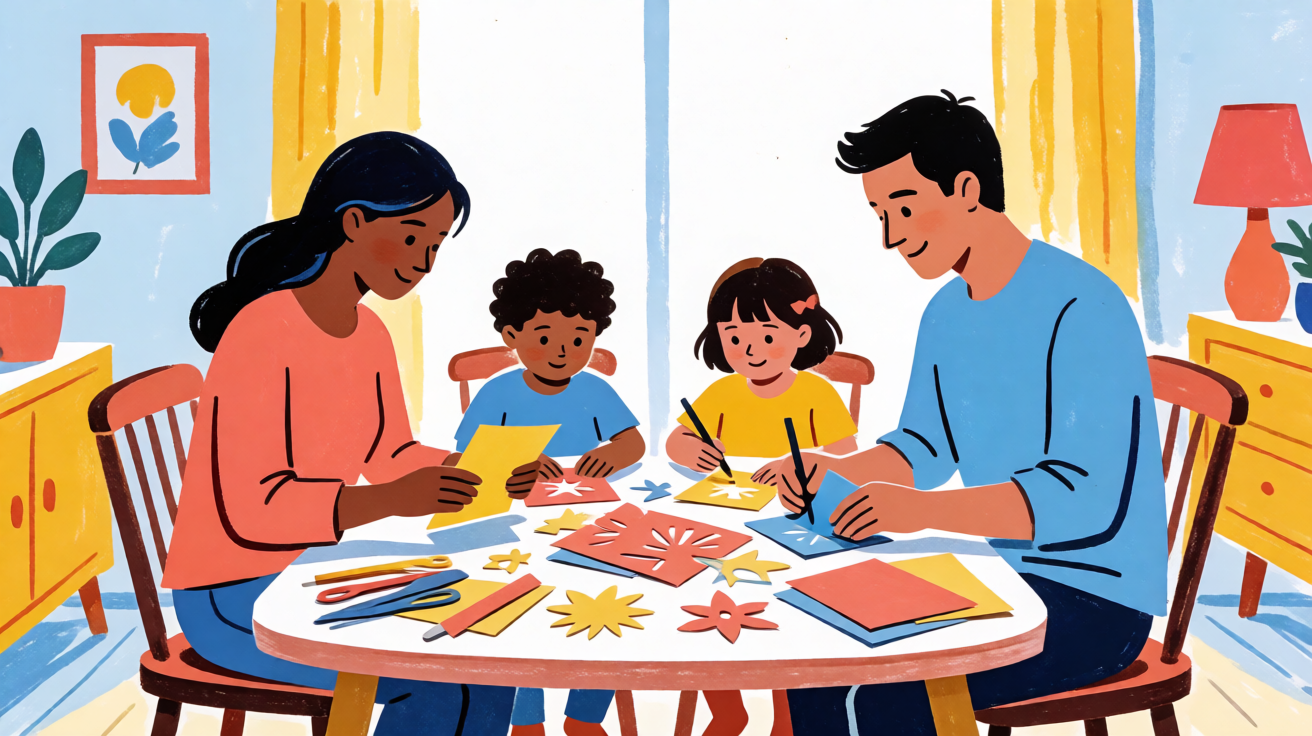
Mastering the Look: Best Photo Settings for Victoria Secret Style AI Runway
Creating digital fashion imagery that mimics the high-energy, polished aesthetic of a major lingerie runway requires more than just a generic prompt. When you aim for that specific "Victoria Secret Style" using AI creative generators, the difference between a amateur result and a professional-grade visual lies in the technical settings. Many beginners struggle with lighting balance, aspect ratio, and prompt structuring, leading to images that feel flat or inconsistent. This guide breaks down the exact parameters and workflow adjustments you need to achieve that signature editorial look, ensuring your output matches the vibrancy and clarity expected in high-end fashion media.
Understanding the Visual Language of Runway Imagery
Before diving into specific slider adjustments, it is crucial to understand what defines the "runway" aesthetic in a digital context. This style is not merely about clothing; it is about motion, lighting contrast, and crowd energy. In AI generation, you are not creating a static portrait but a dynamic scene. The goal is to replicate the feel of a camera panning across a glossy runway with bright spotlights and a blurred, excited audience in the background.
The core elements to target include:
- High-Contrast Lighting: The subject must be sharply illuminated against a darker or less distinct background to create depth.
- Depth of Field: A shallow depth of field (bokeh) is essential to separate the model from the crowd.
- Vibrant Color Palette: Saturated colors typical of editorial photography, avoiding muted or desaturated tones.
- Dynamic Motion: The subject should appear to be walking or posing with energy, not standing still.
When using a tool like Victoria Secret Runway, understanding these visual cues helps you choose the right base settings before you even start typing your prompt.
Key Camera Settings for Realistic Results
Most AI tools allow you to adjust "camera" parameters that influence the final render. For a runway look, you want to emulate a professional sports or fashion photographer. Here is the breakdown of the best photo settings to prioritize:
1. Aspect Ratio and Resolution
Runway shots are often widescreen to capture the length of the catwalk.
- Recommended Ratio: 16:9 or 21:9 (Cinematic).
- Resolution: Aim for 1024x576 or higher if your tool supports upscaling.
- Why it matters: A wider frame allows you to include the runway floor and the audience, which are critical for context. A square crop often fails to convey the scale of a fashion show.
2. Lighting and Exposure
- Lighting Style: "Stage Lighting" or "Spotlight" presets.
- Exposure: Slightly high (+0.5 to +1.0) to ensure the face and outfit are bright, while letting the background fall into shadow.
- Tip: If the AI produces a washed-out image, lower the exposure by 0.5 and add "vignette" or "dramatic shadows" to your negative prompt.
3. Depth of Field (F-Stop)
- Setting: Low f-number (e.g., f/1.8 to f/2.8).
- Effect: This blurs the background (the crowd and distant lights), making the model pop.
- Common Mistake: Using a high f-number (like f/16) results in a sharp background, which distracts from the subject and makes the image look like a headshot rather than a runway walk.
Crafting the Perfect Prompt Structure
The "best settings" are only half the battle; the other half is how you describe the scene. For a Blog style approach to prompt engineering, structure your input in three layers: Subject, Environment, and Technical Specs.
Example Prompt Structure:
"A confident fashion model walking down a glossy runway, wearing [insert outfit], dynamic pose, mid-stride. Background: blurred crowd, bright stage spotlights, pink and purple ambient haze. Technical: shot on 85mm lens, f/2.0, high shutter speed, editorial fashion photography, 8k, highly detailed."
Key Terminology to Include:
- "Mid-stride" or "Walking": Prevents the AI from generating a static pose.
- "Glossy Runway": Adds texture to the floor, reflecting the lights.
- "Blurred Crowd": Ensures the background doesn't compete with the subject.
- "Editorial": Signals the AI to apply a magazine-quality aesthetic rather than a casual snapshot.
You can explore various AI models to see which ones respond best to fashion-specific terms. Some models excel at fabric texture, while others are better at capturing facial expressions.
Troubleshooting Common Aesthetic Issues
Even with the best settings, AI can produce inconsistencies. Here is how to fix common problems when generating runway-style imagery:
- Issue: The model’s feet look deformed.
- Solution: Add "clean feet," "normal anatomy," and "shoes matching outfit" to your positive prompt. Use "deformed," "extra limbs," or "blurry feet" in your negative prompt.
- Issue: The lighting is too flat.
- Solution: Increase the "contrast" slider if available. Add "dramatic shadows" and "rim lighting" to your prompt to separate the subject from the background.
- Issue: The outfit lacks detail.
- Solution: Specify the fabric. Instead of "dress," say "silk dress with sequin details." The AI requires specific material cues to render texture accurately.
Optimizing Your Workflow for Efficiency
To get the most out of your subscription, understand how credits and generation times affect your workflow. Check the Pricing page to see which plan aligns with your volume of experiments. For beginners, it is often more efficient to start with lower resolution settings to test prompt concepts, then upscale the best results. This saves credits on failed attempts.
A Sample Iteration Process:
- Draft: Generate 4 images at 768x768 using the base prompt.
- Select: Choose the image with the best pose and lighting.
- Refine: Tweak the prompt by adding specific details (e.g., "smile" or "hair blowing in wind").
- Finalize: Regenerate at your target resolution (e.g., 1024x1024 or 16:9) with the refined prompt.
Frequently Asked Questions
Can I use reference images to match a specific style? Many AI tools allow you to upload a reference image to guide the style. For runway shots, a photo of the actual venue or a similar fashion campaign can help the AI understand the lighting and mood. However, always combine this with a strong text prompt to ensure the subject matches your intent.
What is the best time of day to simulate in a runway shot? Runway shows typically happen in the evening or at night with artificial lighting. Simulating "night" or "indoor event" lighting with bright spotlights is more authentic than trying to generate a daytime outdoor runway, which is less common in high-fashion contexts.
How do I handle text overlays or logos? AI generators often struggle with specific text or logos. It is better to generate the image without text and add your brand logo or titles later using a graphic design tool. Focus the AI on the visual composition, lighting, and model pose.
Conclusion: Bringing Your Vision to Life
Achieving the "best photo settings for Victoria Secret style AI runway" is less about finding a single magic button and more about understanding the interplay between camera parameters, prompt structure, and post-processing. By focusing on high-contrast lighting, shallow depth of field, and dynamic pose descriptions, you can create imagery that feels professional and engaging.
Start by experimenting with the aspect ratios and lighting presets on your chosen platform. Keep a log of what works so you can refine your process over time. The goal is to build a repeatable workflow that allows you to generate high-quality fashion visuals consistently, whether for a portfolio, marketing campaign, or creative exploration. Remember, the best tool is the one you understand deeply, so don’t hesitate to iterate and test different model variations to find your perfect match.
Questions readers ask
Questions About This Victoria Secret Runway Video Guide
What are the best photo settings for achieving a Victoria Secret style AI runway using the Victoria Secret Runway tool?
To generate the optimal Victoria Secret style AI runway, upload high-resolution source images and select the 'Victoria Secret Runway' preset in the scenario settings. Adjust the 'Runway Speed' to 1.5x for a brisk, dynamic movement that matches the brand's energetic fashion shows. Set 'Lighting' to 'Studio Soft' and 'Camera Angle' to 'Low-Angle Full Body' to highlight the model's silhouette and garment details. Ensure the 'Aspect Ratio' is set to 16:9 for widescreen commercial appeal, and enable the 'Pose Stability' feature to prevent limb distortion during the walking animation.
How does the free trial work, and are watermarks included in the generated videos?
The Victoria Secret Runway tool offers a limited free trial that includes 3 generation credits upon sign-up. Videos generated during the free trial will include a small, non-intrusive watermark in the bottom-right corner. To remove the watermark and unlock unlimited generations, a paid subscription is required. Watermarked videos are suitable for portfolio testing or social media teasers, but commercial use should be reserved for paid plans to ensure professional output without branding interference.
Can I use the generated Victoria Secret style AI runway videos for commercial purposes, and what are the licensing terms?
Yes, you can use generated videos for commercial purposes if you are on a paid plan. Your subscription grants you a license to use the videos in marketing campaigns, e-commerce, and social media advertising. However, you cannot sell the raw video files as stock content or resell the tool's output directly to third parties as their own product. You retain ownership of the final output, but you are responsible for ensuring that your input images (models, garments) do not infringe on existing intellectual property rights.
How fast is the generation speed, and what factors affect the processing time for a runway video?
Standard generation takes approximately 3-5 minutes for a 10-second video clip, depending on server load. Factors that affect processing time include the complexity of the pose sequence, the resolution output (720p vs. 4K), and the number of concurrent users on the platform. For faster results, you can select the 'Draft' mode for preview iterations, which generates in under 60 seconds but with lower fidelity, allowing you to approve the pose before rendering the final high-quality video.
Why does my generated runway video sometimes fail or show visual artifacts, and how can I troubleshoot this?
Failures or visual artifacts often occur when the input photo has inconsistent lighting, poor pose alignment, or excessive background clutter. To troubleshoot, ensure the input image is well-lit, centered, and shows a clear full-body view. If the model's limbs distort, try adjusting the 'Pose Stability' slider to a higher value or split the generation into two segments (upper body and lower body) if the tool supports it. Also, check that your chosen 'Runway Speed' is not too high for the complexity of the garment, as rapid motion can cause fabric blurring.
How does Victoria Secret Runway handle data privacy, and what are the copyright basics for the input images I upload?
All uploaded images are encrypted in transit and at rest. We do not use your private uploads for public model training without explicit consent, and you can request deletion of your data at any time. Regarding copyright basics: you are responsible for having the rights to the input images you upload. If you use a photo of a model or garment you do not own, you assume legal liability for potential infringement. The tool does not verify the intellectual property status of user-uploaded assets, so always ensure your inputs are either your own original work or properly licensed for digital transformation.
Continue the runway research
Related Video Guides
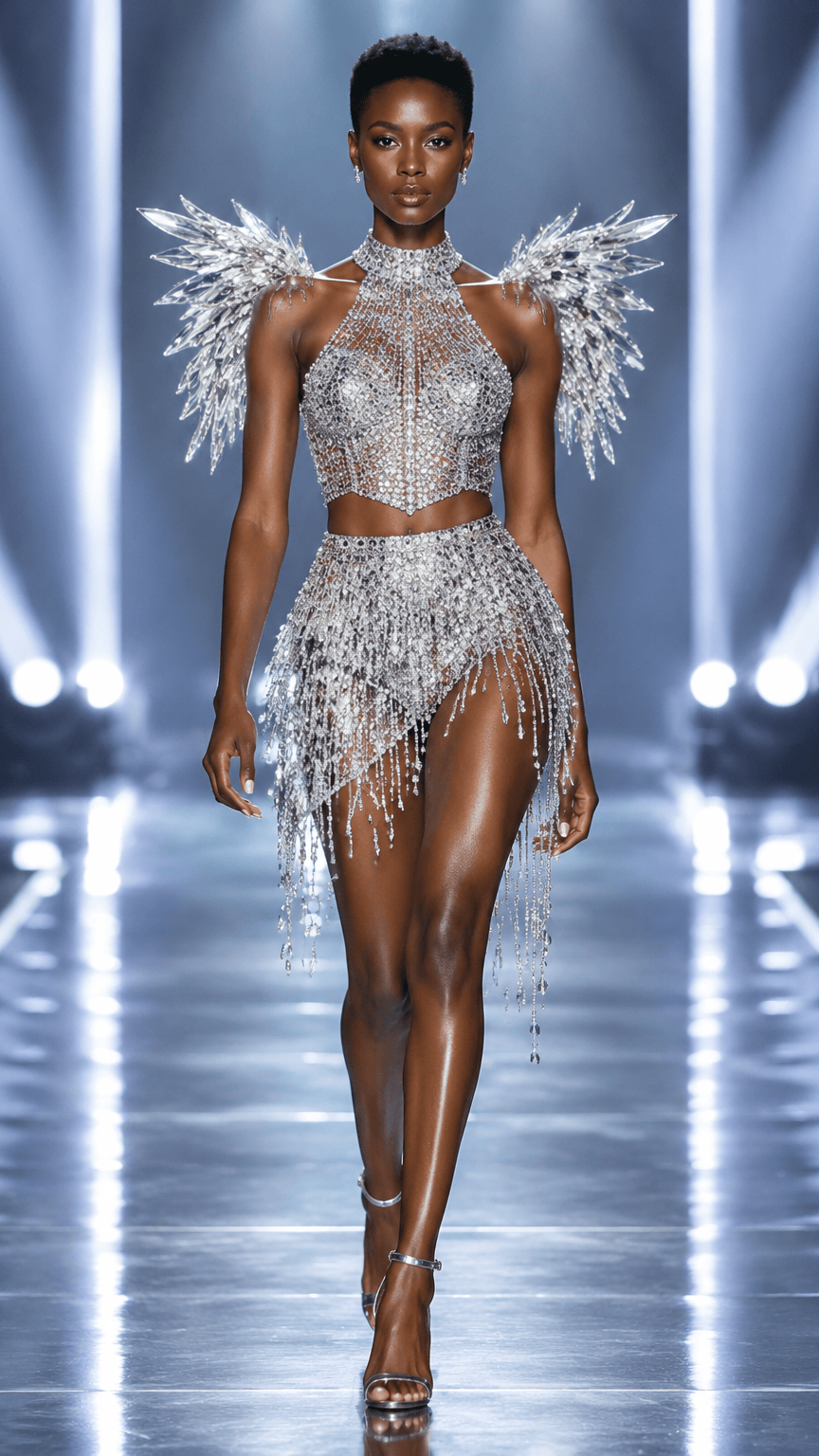 How to Create a Victoria Secret Runway Video From a PhotoA complete, practical workflow for turning one authorized source photo into an original Victoria Secret Runway-inspired video concept.
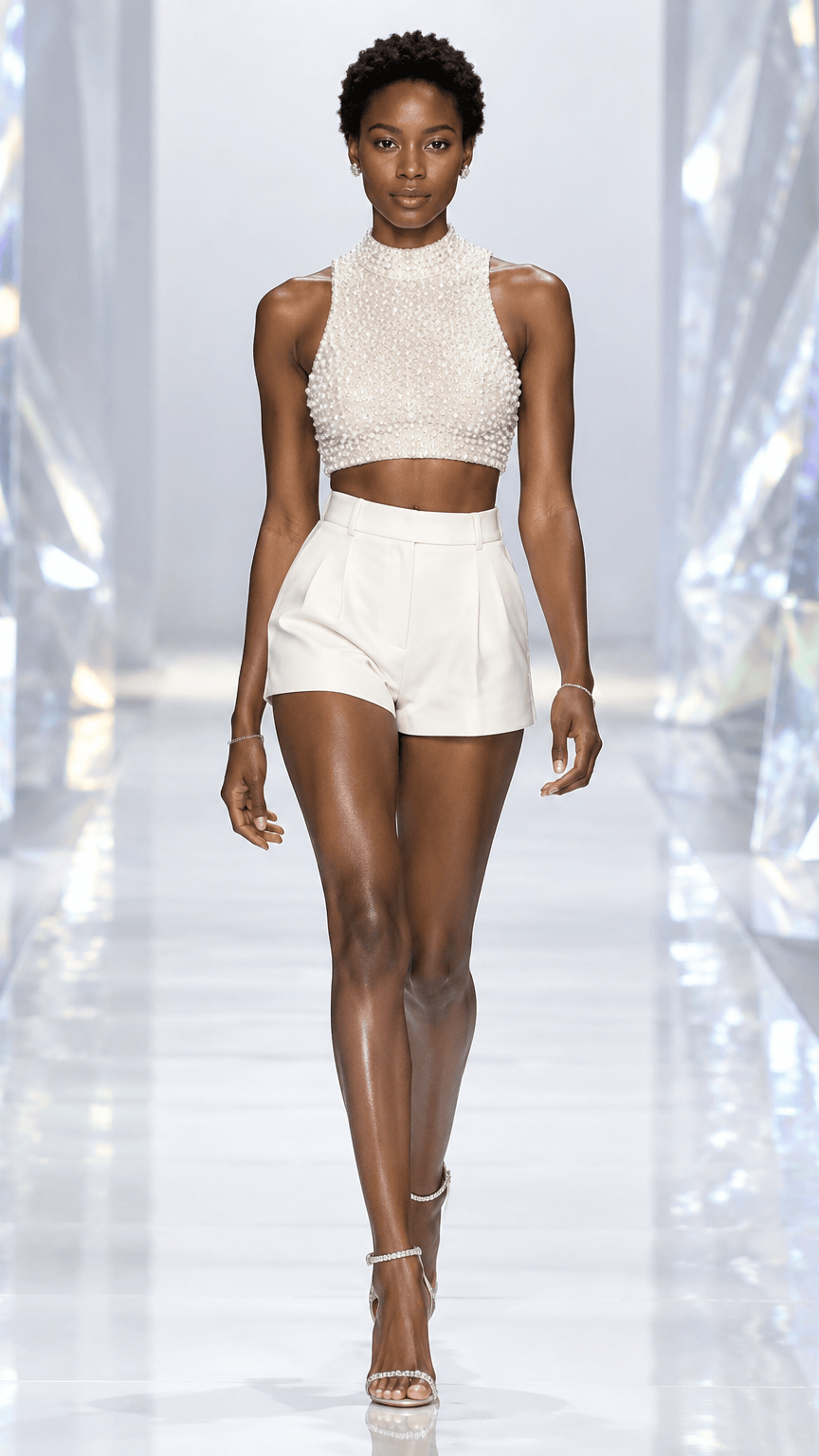 Best Photo for a Victoria Secret Runway AI VideoAn input guide for crop, lighting, silhouette, clothing detail, background, and image permission.
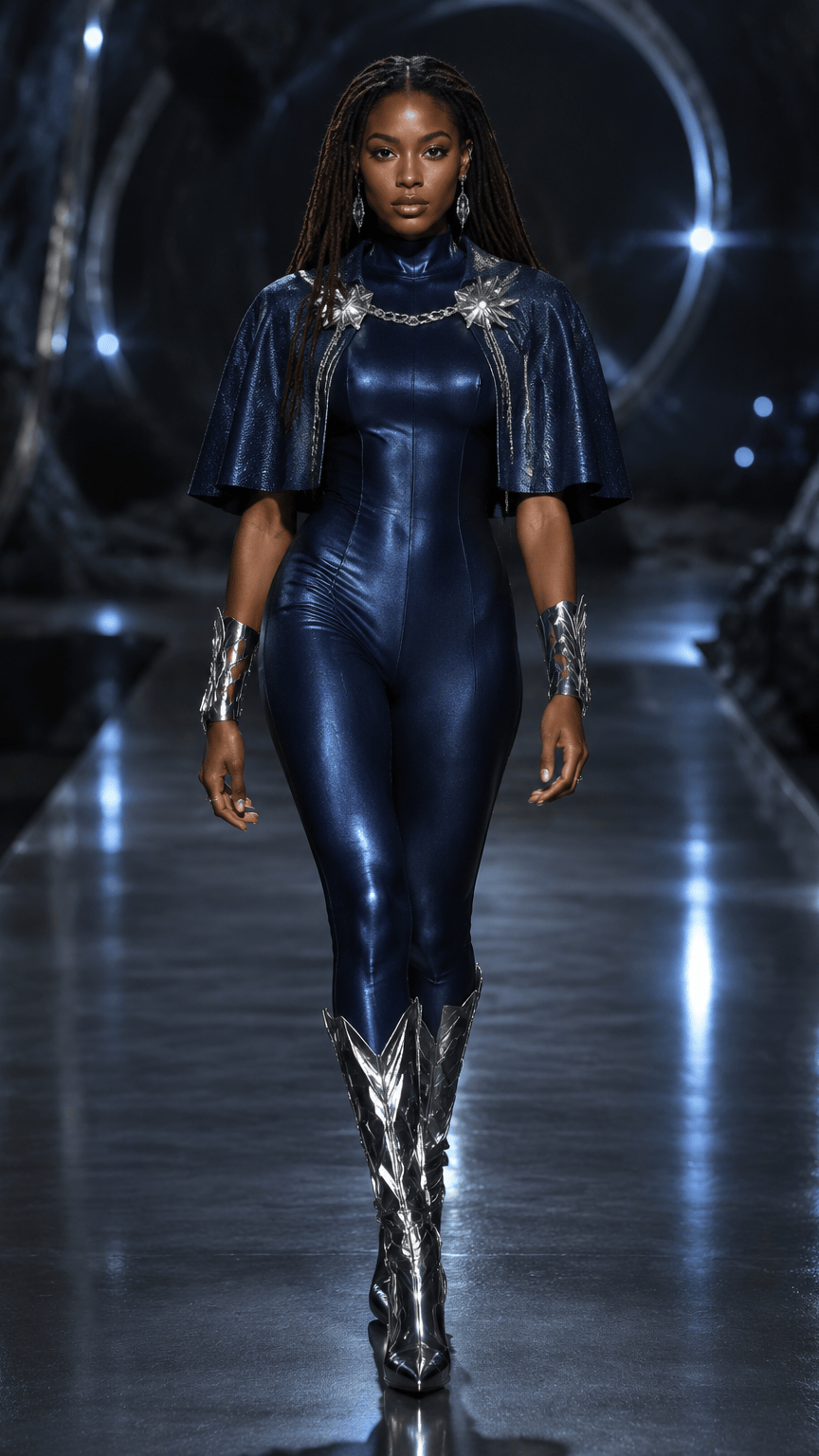 Victoria Secret Runway Scene Ideas for AI Fashion VideosA scene-planning guide for choosing lighting, color, camera energy, and styling direction without presenting original concepts as official brand assets.
Target intent: learn, then make a runway video
Find Victoria Secret Runway Video Guides by Task
Read the guide that matches your question, then open the creator when you have a clear photo and scene direction.